
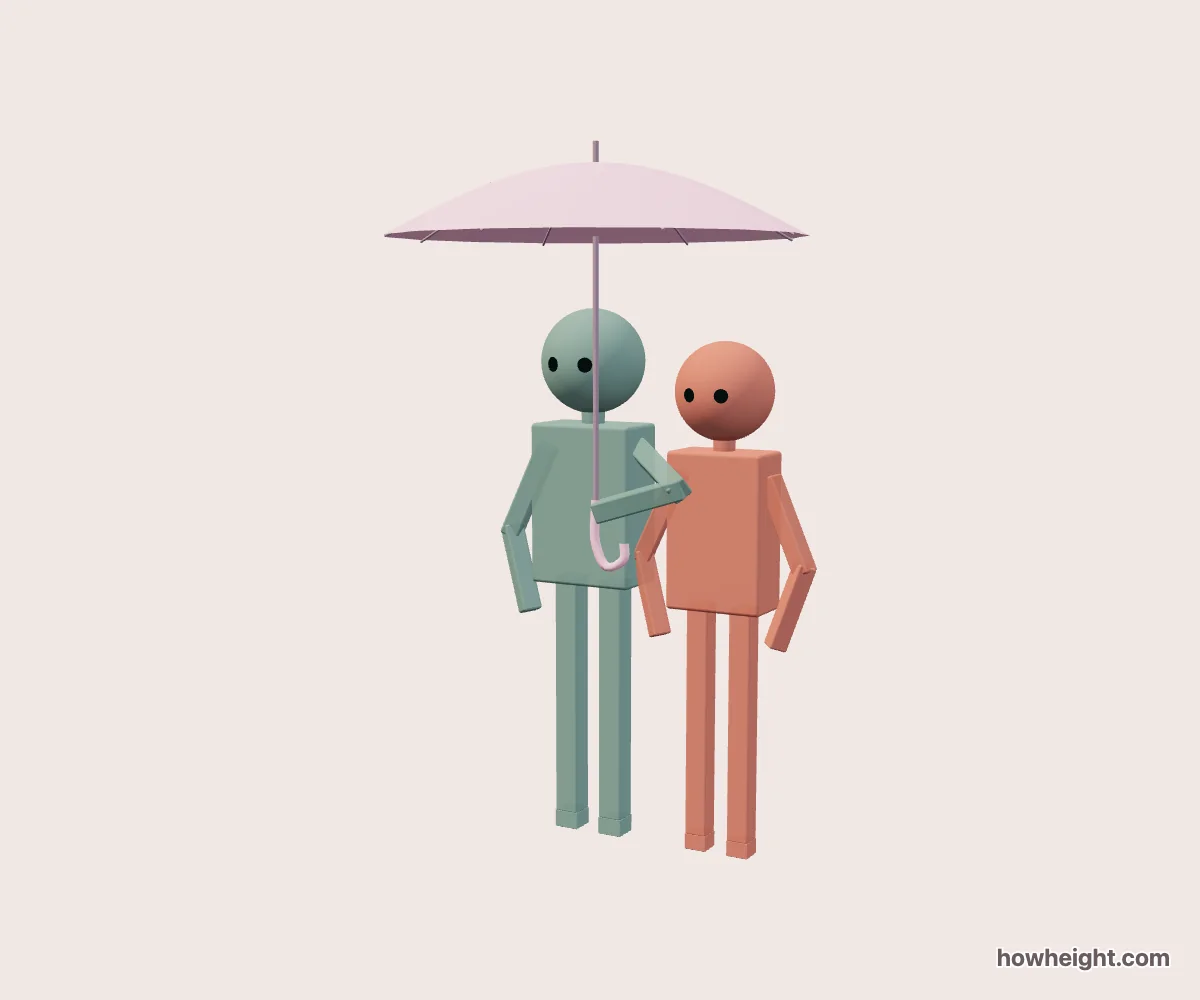
Two characters under one umbrella
A shared umbrella pose has three parts to arrange: the two people, the hand holding the shaft, and the canopy above them. The interesting detail is often not the height difference alone, but how these shapes fit together. Does the umbrella edge sit close to a head? Does the shaft divide the pair? Can you still see the holder’s shoulder and forearm? This tool lets you explore those questions with two simplified 3D characters rather than a single fixed reference image.
Enter the heights you want to compare, choose who holds the umbrella, and turn the scene to see both sides. The holder can be the shorter or taller person. Names and colors help distinguish your characters when their arms overlap.
For an illustration, start with the part of the interaction you need to show. A broad view can emphasize the pair standing together beneath the canopy. A closer crop made from the exported image can emphasize the shared space around their faces. These are different compositions, so a useful angle for one may hide the important detail in the other.
Choose the holder before adjusting the canopy
The Umbrella holder control changes who raises the umbrella. Holder position places that person on the left or right of the arrangement. These settings answer different questions: one chooses the role, while the other changes where the holder stands. Use the names in the person settings to keep track of the pair after a switch. Swap roles does not exchange their entered heights.
With the role selected, follow the shaft down to the hand and then along the forearm to the shoulder. From some viewpoints, the shaft may appear to run through a face even though it sits in front of it. Rotate slightly to distinguish an overlap in the image from the actual arrangement of the objects. Moving the camera is a better first check than changing a character’s height to solve a purely visual overlap.
Compare which version leaves a readable arm shape and enough visible space around the heads for your intended picture. A shorter holder and a taller companion may produce a very different outline from the reversed roles, even though the height numbers are unchanged.
Separate the effect of distance from the effect of tilt
Distance adjusts the scene spacing from 0 to 25 cm. Begin near the middle of that range, then compare a closer and a wider arrangement. Look at the empty space between the upper bodies as well as the apparent coverage of the umbrella. A smaller setting may bring the pair visually together, while also making the inner arms harder to distinguish.
Umbrella tilt ranges from −20° to 20°. Start at 0° so the canopy has a neutral reference position, then tilt in either direction and inspect the result. Notice which edge becomes lower in the picture and how it crosses the head silhouettes. Do not use tilt and distance together on the first comparison: changing one at a time makes it easier to see which adjustment caused an overlap.
Umbrella color affects how clearly the canopy separates from the characters. Two strongly contrasting character colors are useful while setting up the pose; afterward, try the colors intended for the final image.
Compare equal heights and a larger height difference
For a nearly level pair, try 170 cm and 170 cm. Use the front view to compare the heads, then look for the asymmetry introduced by the raised arm and the umbrella shaft. Equal standing heights do not make the whole pose symmetrical. This example is useful when you want a shared umbrella illustration to feel balanced without placing every object at the center.
Next, try 175 cm and 165 cm with the same holder and tilt setting. Inspect the strip of space between each head and the canopy. Then swap roles and return to the same overview preset. You are comparing the placement of the prop and the arms, not just confirming that one character is ten centimeters taller. Keep the version that explains the interaction most clearly from the intended drawing angle.
For a stronger contrast, use 185 cm and 155 cm. Check the taller head before moving to the hand and the lower umbrella edge. A composition that looks clear from the front may be crowded from a diagonal angle.
Build a drawing reference from the visible gaps
In a shared umbrella drawing, the small gaps can explain the pose more clearly than the large shapes. Look between the shaft and the nearest face, between the raised forearm and the chest, and between the two heads. When those areas collapse into one silhouette, the viewer may have trouble identifying which person holds the umbrella. A modest change of viewing angle can restore the separation.
Use the side view to understand which shapes sit in front of others, then choose a diagonal view for the reference you will draw from. Sketch the canopy and shaft first as a simple frame around the pair. Place the heads beneath it, add the torso directions, and connect the holder’s shoulder to the hand.
Switching styles can help you notice an arm hidden by a broader shape. When you adapt the reference to your own characters, recheck the space occupied by their hair and clothing: a clear gap around the simple figure may disappear after those details are added.
Keep the whole umbrella in the saved reference
Before export, inspect the canopy edges as carefully as the feet. An image that includes both people but cuts off the umbrella can lose the shape that connects them.