
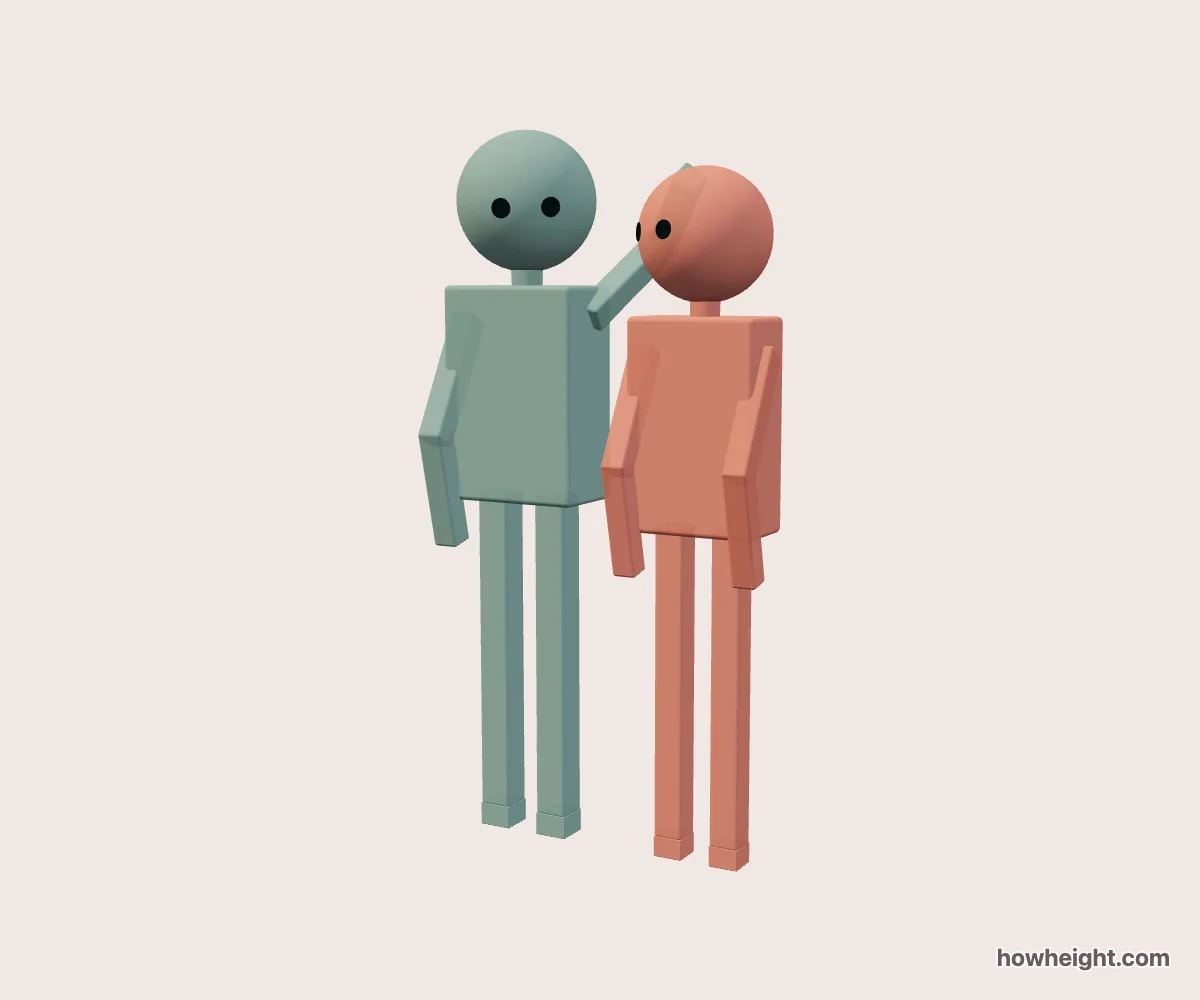
A head pat and a cheek touch have different focal points
A head pat is a small gesture with a clear destination: the top of the other character’s head. A cheek touch moves that destination down and toward the side of the face. Although both involve one raised arm, they create different shapes around the heads and shoulders. This simulator lets you compare the two with your own characters and height choices in a simplified 3D scene.
Select Offering a touch to choose who reaches toward the other person. Then compare Soft head pat with A gentle cheek touch. The other character receives the touch in either preset. Names and colors stay attached to their original characters when you use Swap roles, so you can explore the shorter person reaching upward without exchanging the two entered heights.
For a drawing, decide whether the important detail is the hand arriving above the head or the hand resting beside the face. That choice affects what must remain visible. A head pat may be readable through the outline above the hair, while a cheek touch can lose its meaning when the forearm hides too much of the face. The preview helps you examine that distinction before adding expressions or fingers.
Trace the arm through three visible points
Locate the reaching shoulder, the elbow, and the contact area on the other head. Those three points explain the arm more clearly than a detailed hand alone. In the overview, turn the scene until you can distinguish them. If the elbow and head edge appear to touch, check another angle before concluding that the gesture itself is unclear.
For Soft head pat, inspect the space under the raised forearm as well as the hand above the head. That opening can make the motion implied by the still pose easier to understand. For A gentle cheek touch, look for the boundary between the hand, the cheek, and the neck. The lower contact point changes which areas overlap, even when the character heights and reaching role stay the same.
Compare a downward reach, a level pair, and an upward reach
Try A at 175 cm and B at 165 cm, with A offering the touch. Look at the shoulder-to-head relationship from the front, then turn toward the side to inspect the elbow. Switch between the head pat and cheek touch while leaving the character settings alone. This makes the changed destination of the hand easier to notice than it would be after several simultaneous adjustments.
Set both characters to 170 cm for a second comparison. Equal standing height does not make the pose symmetrical: one person reaches and the other receives the gesture. Look at how the arm breaks the otherwise similar head levels. Reversing the roles lets you decide which side of a character illustration should carry that more active outline.
For a stronger contrast, try 185 cm and 155 cm, then let the shorter character offer the touch. Inspect the legs and ground as well as the hand. The scene can adjust posture to bring the contact together, and an extreme height difference may lead to a small step appearing beneath the reaching character.
Why a character may bend or stand on a step
The head-pat arrangement tries to bring the simplified hand and target area together. Depending on the two proportions, a character may bend at the knees rather than remain completely upright. For more extreme differences, the preview can add a step after the posture adjustment is insufficient. This means the entered standing heights and the visible top-of-head levels are not always interchangeable.
If your drawing requires both characters to stand straight on the same floor, inspect the complete preview before using a close reference. A crop around the faces can hide bent knees or a step and make the reach appear possible without those changes. Keep the feet visible in one reference image even when your final illustration focuses on the heads and upper bodies.
Choose a camera that keeps the gesture legible
The front overview helps compare head levels, while Side reveals which parts of the arm lie ahead of or behind the other figure. A diagonal composition can expose both the hand and part of the face. Rotate slowly through a few possibilities and watch the background gap around the elbow. A small opening may explain the limb better than a dramatic viewing angle.
From the receiving character’s view, the other person’s arm may enter close to the camera. That can suggest a subjective panel, but it may conceal much of the contact.
The Rounded and Simple styles change the visible silhouettes. One may make it easier to follow the upper arm, while the other may better match the simple character style of your planned image. After choosing a style, recheck the contact rather than assuming every visible gap will remain identical across both models.
Use the model for the gesture and your drawing for the expression
For a head-pat drawing, place the two heads and torso directions before connecting the reaching shoulder to the contact point. Add the elbow as part of that connection, then refine the hand. For a cheek-touch drawing, give particular attention to how much of the face remains visible.
Keep one full-body reference to explain any stance adjustment and another image from the angle you plan to draw.