
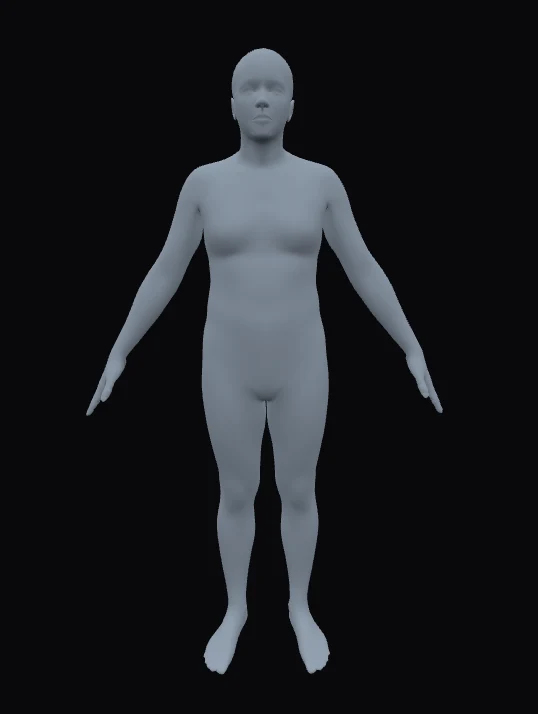
Height
137-214 cm / 54-84 inChanges: Changes the model's total scale.
Watch: At the same weight, shorter bodies read broader and taller bodies read leaner.
Adjust: Start here. Every other measurement is judged against height.
Preview how height, weight, chest, waist, hips, and inseam affect human body proportion and visual scale.
Height, weight, and body proportion
Use the HowHeight Body Visualizer to see how height, weight, and body measurements work together on a human body figure. Build a body model from height, weight, chest, waist, hips, and inseam, then rotate the 3D preview or add another custom body for a side-by-side comparison.
Height sets the person's size. Weight changes how full or slim the body looks. Chest, waist, hips, and inseam refine the proportion you see.
Height gives the body its real-world size, so weight and measurements are shown on a full figure.
Use chest, waist, hips, inseam, and weight to shape the body figure and understand how each value changes the visual result.
Use New Body to build a second custom model, then compare two sets of height, weight, and body measurements in the same scene.
Use cases
This page is for body visualization: seeing how height, weight, and body measurements interact to create a specific human body proportion.
Feel how the same weight can look different at different heights, and how body weight changes the front and side visual effect.
Start from a base body, then adjust each indicator until the body figure matches the proportion you want to study.
Place Body A and Body B together when you want to compare two measurement sets on screen.
Height sets the person's size. Weight changes how full or slim the figure looks from the front and side.
Adjust chest, waist, hips, and inseam to shape the upper body, middle, lower body, and leg proportion.
Use Edit one value for isolated changes, Auto-balance for proportional changes, and New Body when you need a second model.
Body shape, body model, and visual scale
Use the HowHeight body visualizer to understand how height, weight, and body measurements combine into a realistic visual body figure.
HowHeight's body visualizer starts with six inputs: height, weight, chest, waist, hips, and inseam. The preview uses those values to build a 3D body model, so you can check front view, side profile, torso shape, hip width, and leg-to-torso proportion in one place.
Set height and weight first, then adjust the tape-measure values. Rotate the body model to inspect front, side, and back views, or add Body B to compare the original body with a changed version.
Start from a base human body figure, then enter the values you want to test. Height changes how tall the person is, weight changes how full or slim the body looks, chest and waist shape the torso, hips change the lower body, and inseam changes the leg-to-torso split.
Use Edit one value when you want to see the result of a single change, such as a wider waist or longer inseam. Use Auto-balance when you want related measurements to move together before you fine-tune the body model by hand.
Use New Body to add a second model. Keep Body A as the original, then change Body B by one value or by a full second set of height, weight, chest, waist, hips, and inseam measurements.
Compare the same height with different weights, the same weight at different heights, or similar BMI values with different chest, waist, and hips. Rotate both body figures to check the front, side profile, back view, and overall proportion.
Height changes how the same body weight looks. At the same weight, a shorter person can look broader, while a taller person can look slimmer or more elongated.
Weight changes how full the body looks. From the front it can affect the torso, hips, arms, and legs; from the side it can change the abdomen and chest-to-waist outline. After setting height and weight, use chest, waist, hips, and inseam to tune the shape more precisely.
If you only enter height and weight, the page can still show a starting preview and a BMI reference. Add chest, waist, hips, and inseam when you want the body model to match a more specific set of measurements.
The BMI Calculator is better for the health-status side: it calculates BMI, shows the adult weight-status category, and can compare local country standards with the WHO reference where available.
This body visualizer uses the same height and weight as inputs, then adds body measurements so the preview can show body width, side profile, and leg proportion.
Open the BMI Calculator first if you want a health-status reference with more detailed country standards before adjusting the body preview.
The same measurement change can look different on each base body. Chest mainly changes the upper torso and side profile, waist changes the middle, and hips change the lower body, but the visible result depends on the selected model.
Try keeping height and weight the same, then change only waist, hips, or chest on each body type. This makes it easier to see how that model responds instead of assuming every body type will show the same change.
Measurement guide
Common human body visualization ranges for the height, weight, chest, waist, hips, and inseam controls.
Changes: Changes the model's total scale.
Watch: At the same weight, shorter bodies read broader and taller bodies read leaner.
Adjust: Start here. Every other measurement is judged against height.
Changes: Adds or removes overall body fullness.
Watch: It affects the torso, arms, legs, and side view at once.
Adjust: Use it as the broad control. Fix one area with chest, waist, hips, or inseam.
Changes: Changes the upper torso.
Watch: Compare it with waist to read taper, straightness, or upper-body width.
Adjust: Adjust after weight when the upper body feels off.
Changes: Shapes the midsection.
Watch: It changes the front view, abdomen side view, and the transition from chest to hips.
Adjust: Move this in small steps. It is one of the most visible sliders.
Changes: Changes lower-body width.
Watch: It affects pelvis shape, thigh spacing, and how narrow the waist appears by contrast.
Adjust: Tune this after chest and waist are close.
Changes: Changes leg length relative to the torso.
Watch: At the same height, a longer inseam means a shorter torso.
Adjust: Set this last, after height and body width feel right.
Practical notes about body measurement previews, BMI reference, and what this tool is not intended to do.
It is for seeing how height, weight, chest, waist, hips, and inseam affect one 3D human body figure.
Set height and weight first. Then adjust chest, waist, hips, and inseam to fine-tune the body model.
Yes. Use New Body to add Body B, then switch between Body A and Body B while editing each custom model.
Related measurement tools