
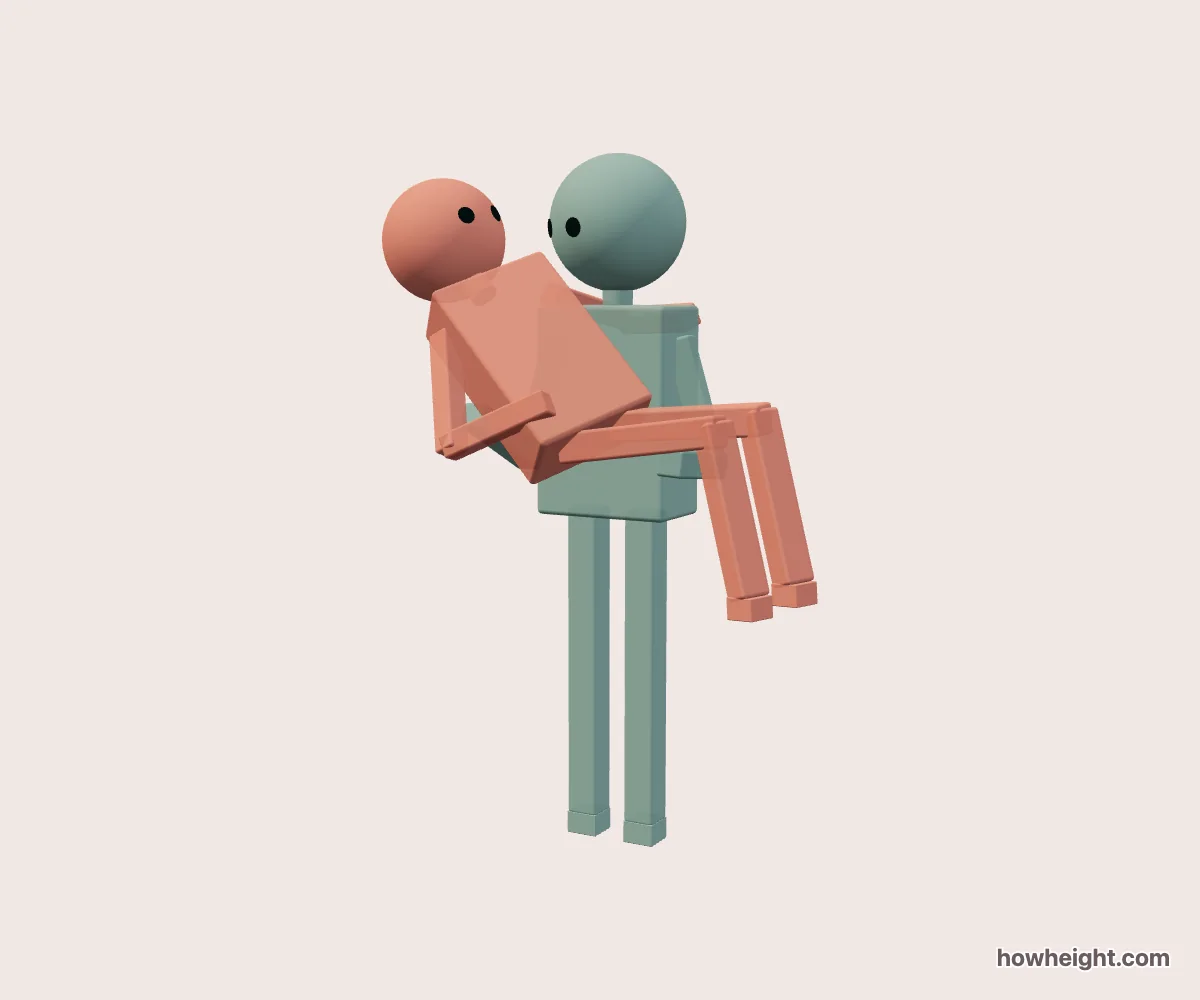
A princess carry extends sideways across the frame
A princess carry places one character across the front of another, with the carried body extending sideways rather than standing on the ground. This is also described as a bridal carry. In the preview, the useful comparison is the relationship between the carrier’s torso, the carried character’s head, and the legs projecting to one side. Looking only at the original height difference misses most of what changes in this pose.
Use this page to explore that arrangement for two characters, choose who carries, and inspect it from different directions. You can enter names, heights, and colors before selecting the carrier. Either person can take either role.
For an illustration, a comic panel, or a character comparison image, first decide whether the important feature is the pair’s faces or the complete carrying silhouette. A close composition may show the head relationship well while hiding the arm beneath the legs. A wider reference can help explain that hidden structure even when it will not appear in the final crop.
Choose the carrier and the direction of the pose
Carrier selects the person standing underneath the arrangement. Swap roles assigns that job to the other character without exchanging their names or entered heights. With a 180 cm character and a 160 cm character, reversing the roles therefore creates a second version of the same pair, not a renamed copy of the original scene. Colors can make that distinction easier to follow when torsos and arms overlap.
Carry direction switches which way the carried character extends across the scene. Compare both directions before choosing the final camera angle. A direction that leaves both heads visible from one side may place the carried head behind the carrier’s shoulder from the other. This is especially noticeable when the reference will fit into a narrow comic panel or a composition with space reserved for text.
Follow the supporting arms before judging the outline
Begin with a side or diagonal overview and identify the carrier’s two shoulders. Follow each arm toward the carried figure. One supporting area is near the upper body and the other beneath the legs. The precise visible outline depends on the character proportions and the angle, so inspect both sides instead of assuming a hand concealed in the front view is missing.
Next, trace the carried body from head to torso, through the hips and knees, and out to the feet. This sequence helps separate that character’s bent legs from the carrier’s forearms. When several rounded shapes meet in a small area, contrasting colors make their ownership clearer. After the structure is understandable, switch to the colors you intend to use in the exported image.
An overlap in the picture is not automatically an error. Arms must pass in front of or behind parts of the carried character for the arrangement to read as a carry. What matters for a reference is whether you can explain those overlaps by turning the view.
Compare who extends across the frame
Try a 175 cm carrier with a 165 cm carried character. From the front, note the carried head relative to the carrier’s face and shoulder. Then turn toward the side where the legs extend. The second view reveals how much of the horizontal shape was shortened by perspective in the first image. Use both views to understand the same pose rather than treating them as different height arrangements.
Keep the carrier at 175 cm and increase the other character to 185 cm. Check the length of the visible torso-and-leg shape and the space it occupies across the frame. If the whole scene is reframed to fit, a taller character may not simply look larger on your screen. Compare the body parts relative to one another, not their apparent size against the browser window.
Now reverse the roles so the shorter character carries the taller one. Inspect the heads, supporting arms, and full silhouette again.
Pick an angle that explains the carry
A front view is a useful starting point for the relationship between the faces. A side view makes the carried body’s direction clearer and can uncover the arm supporting the legs. A diagonal angle often exposes part of both relationships, but it is not automatically better: the near knee or shoulder may obscure a head that was visible in the simpler view. Choose according to the detail your picture needs.
Check the outline against the background. A foot touching the edge of the carrier’s leg in the image can make the limbs look connected. A hand hidden exactly behind a knee can make the support difficult to read. Small rotations may separate those edges without changing the characters or carry direction. This is a composition adjustment, not a correction to the entered heights.
Character views can suggest what one figure sees from the model’s eye position. They are less useful for verifying the complete supporting arrangement because much of the carry may lie below or beside the camera. Keep an overview reference alongside a subjective view when planning sequential art. The overview explains where the bodies are; the closer viewpoint helps you decide what the reader will see.
Block in the carrier and the sideways silhouette
When blocking a princess carry drawing, place the two heads and the carrier’s torso first. Add a broad line for the carried torso and legs, then locate the arms that connect the figures. This order makes it easier to change the carrying direction before committing to hands, clothing folds, or hair.
Inspect the image boundaries around the carried head and feet. The composition extends sideways, so a portrait canvas may fit the complete pair quite differently from a square one.