
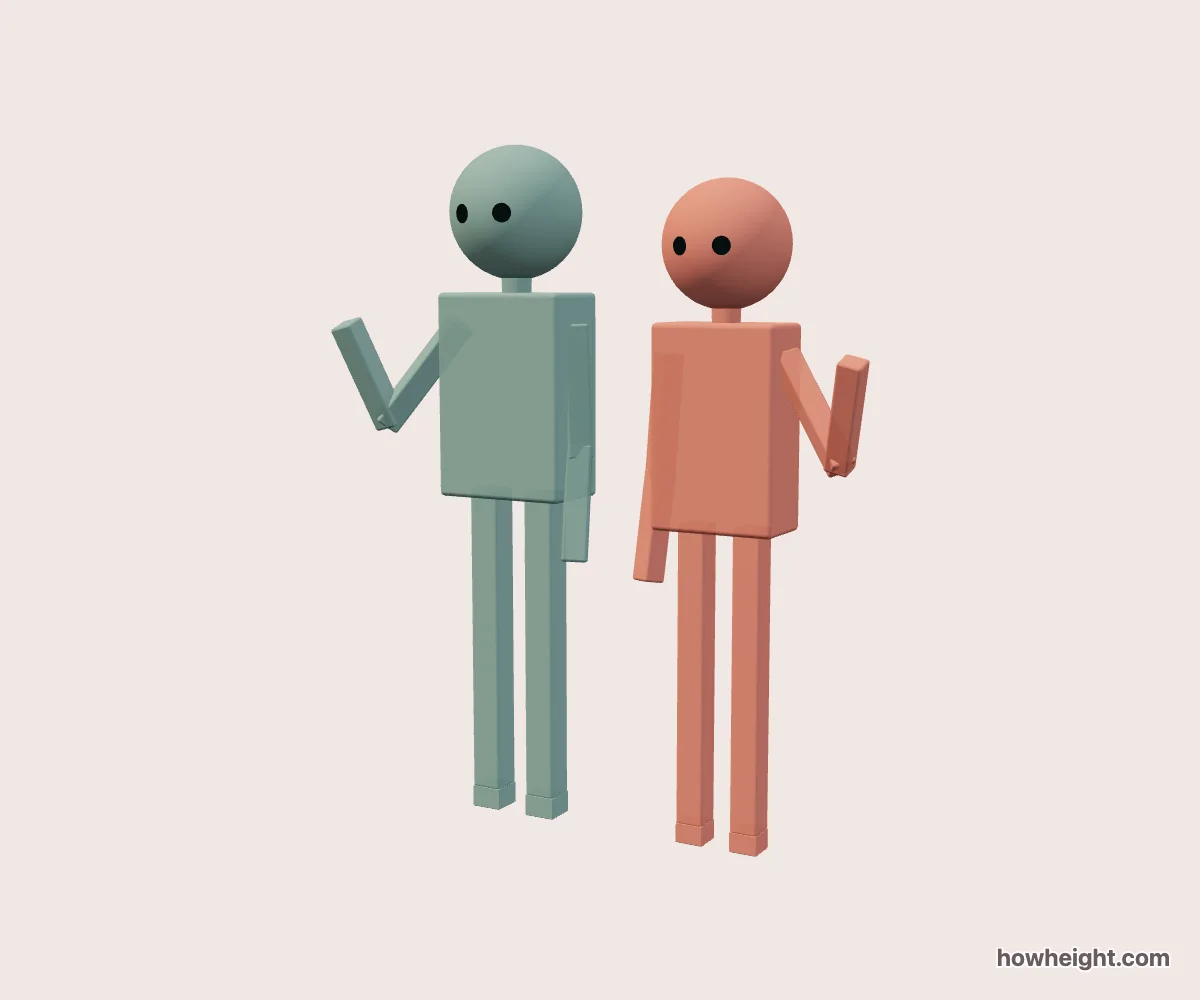
Choose what the two-character picture should show
A two-character photo pose needs a clear outline before it needs decorative detail. The heads, shoulders, and hands should remain distinguishable when the image is small. This simulator lets you arrange two simplified characters, enter their heights, and compare a waving pose with a shoulder pose.
Use names and colors to identify the pair, then start with an overview that includes both heads and all visible hands. For a couple photo pose, you may want the close relationship between the shoulders to dominate. For friends or fictional characters greeting the viewer, the raised hands may be the important feature. The same height combination can serve either composition, but the best viewing angle can differ.
Compare Wave together with Shoulder photo
Wave together places the hands into a greeting pose. Check how clearly each hand separates from the nearby head and shoulder. From one angle, a raised hand may appear beside a face; from another, it may overlap the face or merge with the other arm. Turn the overview to distinguish those projected overlaps before changing the character settings.
Shoulder photo creates a closer upper-body arrangement. Follow the connecting arm from its shoulder toward the other character, then inspect the visible head gap. With a large height difference, the contact may shift lower toward the other figure’s back rather than remain exactly on the shoulder.
Compare both presets with the same pair and the same overview direction.
Give the hands and heads enough room
Distance adjusts scene spacing from 0 to 25 cm. A close setting can make the pair compact, while a wider setting exposes more of the inner arm shapes. Watch the shoulders and heads together: a clear gap between the torsos does not guarantee that both faces remain visible from a diagonal view.
For Wave together, try a few spacing values while keeping the camera fixed. Look for a composition where each raised hand can be associated with the correct character. For Shoulder photo, watch how the connecting arm relates to the second torso. Choose spacing according to the visible relationship you need, rather than assuming the widest setting always produces the clearest picture.
The person-on-the-left control and Swap roles change which character occupies the corresponding role in the arrangement. Names, heights, and colors remain attached to their original characters. After rotating the scene, screen-left may no longer be a reliable guide to that assignment. Follow the names and colors when comparing which person should be nearest the viewer or most visible in the final composition.
Compare head levels without measuring pixels
Set both characters to 170 cm and start with Wave together. Their similar head levels give you a useful reference for comparing the hand shapes. Even at equal heights, the final image need not be perfectly mirrored because the camera angle and the preset can create different overlaps on each side. Inspect the actual silhouettes rather than forcing the image into a symmetrical layout.
Try 175 cm and 165 cm next. In the front overview, look at the head and shoulder levels, then switch to Shoulder photo without changing the heights. The difference you see now includes both the height relationship and the way the connecting arm is arranged. A second image from the same overview preset can help you compare the two choices later.
For a stronger contrast, use 190 cm and 155 cm. Check where the connecting hand lands and how much space remains around the shorter figure’s head. Because the scene may reframe to include the full pair, do not estimate the height difference from pixel distances in the browser.
Frame the pose around its widest feature
In Wave together, the widest point may be an elbow or a raised hand rather than a shoulder. In Shoulder photo, it may be the combined torso outline. Inspect those outer edges before choosing an export shape. A picture that includes both faces can still feel cut off if the hand that defines the greeting sits against the boundary of the frame.
If the hands become too small, make a separate crop afterward while retaining enough of the arm to explain the gesture.
Color contrast can help when the two characters overlap. First use clearly different colors to inspect the shoulder connection, then compare your intended final palette. The Rounded and Simple model styles also produce different outlines, so recheck the heads and hands after switching.
Use one clear image as the main reference
For a drawing, block the two heads, shoulder directions, and raised or connecting arms before adding clothing. A sleeve can fill the gap that made a waving hand readable, and long hair can hide the shoulder contact. Keep the simple preview beside the sketch to see which later details changed the original outline.