
What makes a kabedon pose readable?
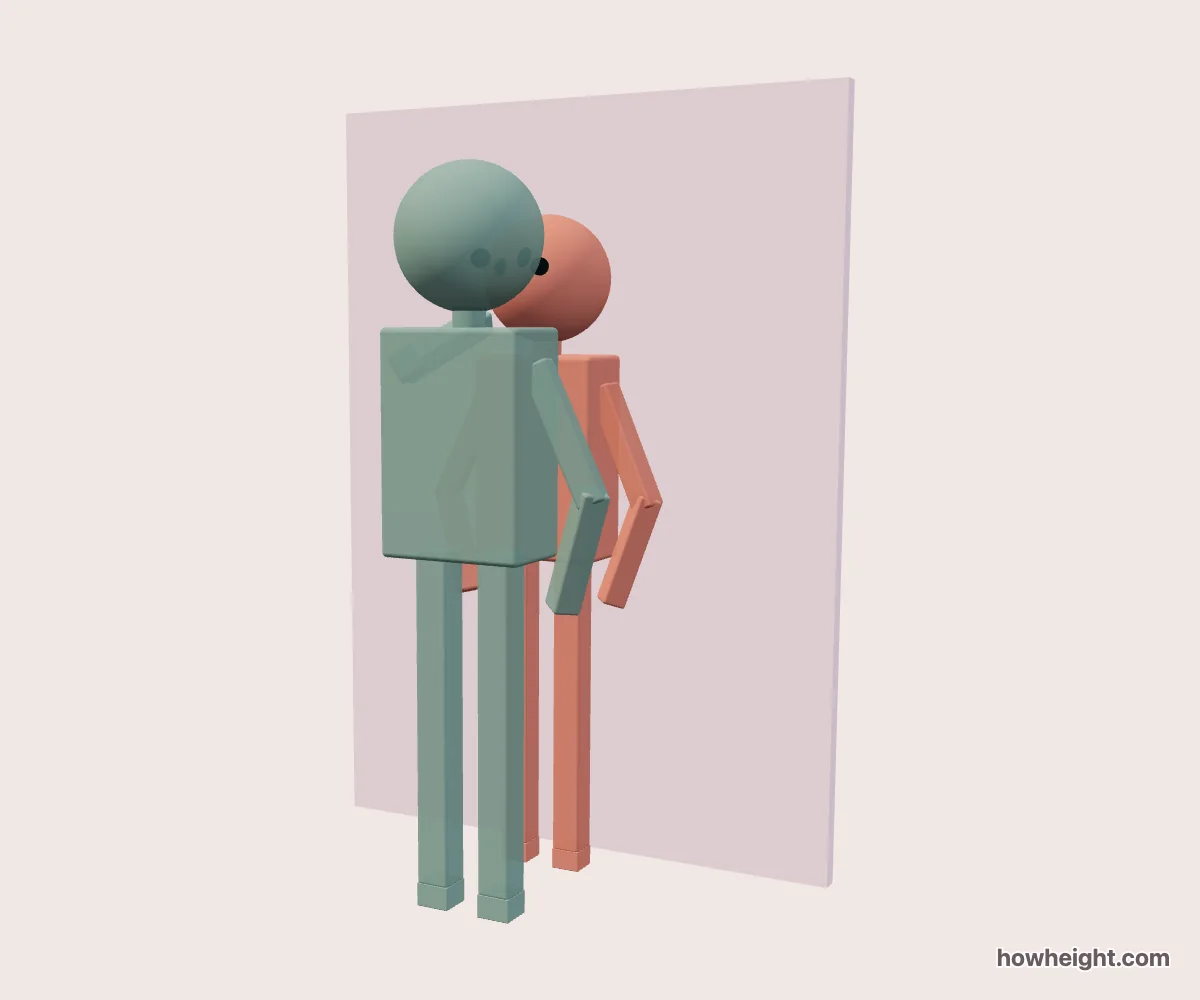
In this tool, a kabedon is a wall-side pose in which one character places a hand beside the other. The wall, the raised arm, and the space between the pair establish the arrangement. A height difference changes how those parts line up: the same hand position may sit near one character’s head but much lower beside another. The 3D preview makes those relationships visible without requiring you to pose individual joints.
Start by identifying the active person, who places the hand, and the person by the wall. Those roles matter more than who happens to appear on the left of your screen. You can choose either character as the active person, regardless of their relative heights.
For drawing or character composition, decide what the picture needs to reveal. A view showing both faces may hide the hand contact. A side view may explain the distance while making one face less visible. Rather than looking for a single best angle for every kabedon drawing, use the preview to choose which relationship should be clearest in your particular frame.
Set the active person and the wall hand
Select Active person to choose who places a hand against the wall. The other character takes the wall-side role. Swap roles changes that assignment while keeping the two names, heights, and colors attached to their original characters. This lets you compare a taller initiator with a shorter initiator without retyping the same information or accidentally reversing your character identities.
Wall pose offers Left hand, Right hand, and Both hands. Begin with one hand so you can follow a single shoulder-to-hand line. Then try the other hand from the same overview preset. A change that seems minor in the controls can move the main arm from the foreground to the background, altering how much of the wall-side character remains visible.
Both hands creates a different frame around the second character. Check each forearm separately before judging the overall silhouette. From a narrow viewing angle, the two arms may overlap, giving the impression of one unusually thick shape. Rotating toward a more open view can show whether the pose itself or the camera projection is responsible for the confusing outline.
Hand height and distance change different parts of the pose
Hand height runs from 0% to 100%. Compare a lower and higher placement beside the wall-side character. Watch the elbow as well as the hand: the gesture is conveyed by the path of the whole arm.
Distance ranges from 25 to 55 cm. Move it gradually while keeping the hand setting fixed, then inspect the space between the bodies from the side. This separates the effect of spacing from the effect of moving the hand.
Next, return to your preferred distance and change only the hand height. Compare where the arm passes relative to the other head and shoulder. You may find that a lower hand leaves more of the face visible, or that another viewing angle explains a higher placement more clearly.
Compare a taller and a shorter active person
Try A at 180 cm and B at 165 cm, with A active. Look first at the relative head heights, then at A’s shoulder and the wall hand. After swapping roles, the same two characters remain 180 cm and 165 cm, but B now reaches toward the wall. This is a direct way to explore a shorter character initiating the pose without rewriting the scene around a taller initiator.
For an equal-height comparison, use 170 cm for both characters. The arrangement will still be asymmetric because one person raises an arm and the other stands by the wall. Check whether your chosen frame communicates that distinction clearly. Equal height is especially useful as a reference when you want to study the arm-and-wall shape without a large vertical difference competing for attention.
A more pronounced pair, such as 190 cm and 155 cm, makes it worth inspecting the whole figure. Do not crop immediately to the faces and assume the rest of the posture stayed unchanged. Look at the shoulders, torso directions, and feet before selecting a closer composition.
Why the wall disappears in a character view
Overview is the right place to inspect the wall prop and both bodies together. Front and Side provide reference directions, while Orbit and manual rotation help you find a diagonal composition. The side view is particularly useful for separating the wall, the person nearest it, and the active character’s arm. Inspect that depth arrangement before relying on a single front-facing image.
The two character views place the camera near the simplified model’s eye position. In this mode the wall prop is hidden so it does not block the virtual viewpoint. Return to Overview when you need to verify the hand against the wall.
Turn the arm and wall into a clear composition
For a kabedon pose reference, begin with the wall plane and the two head positions. Mark the active shoulder and the hand contact, then connect them through the elbow. This avoids starting with a detailed hand that later turns out to belong on the other side of the composition. Check the small background opening inside the bent arm; it can help the viewer read where the limb begins and ends.
Pay attention to tangencies, where unrelated edges appear to touch in the image. An elbow meeting the other character’s jaw outline can look like a connection that does not exist in the scene. Turn the view slightly and compare. When adding your own hair, sleeves, or collars, repeat that check in the drawing because those extra shapes can close a gap that was clear around the simple model.