
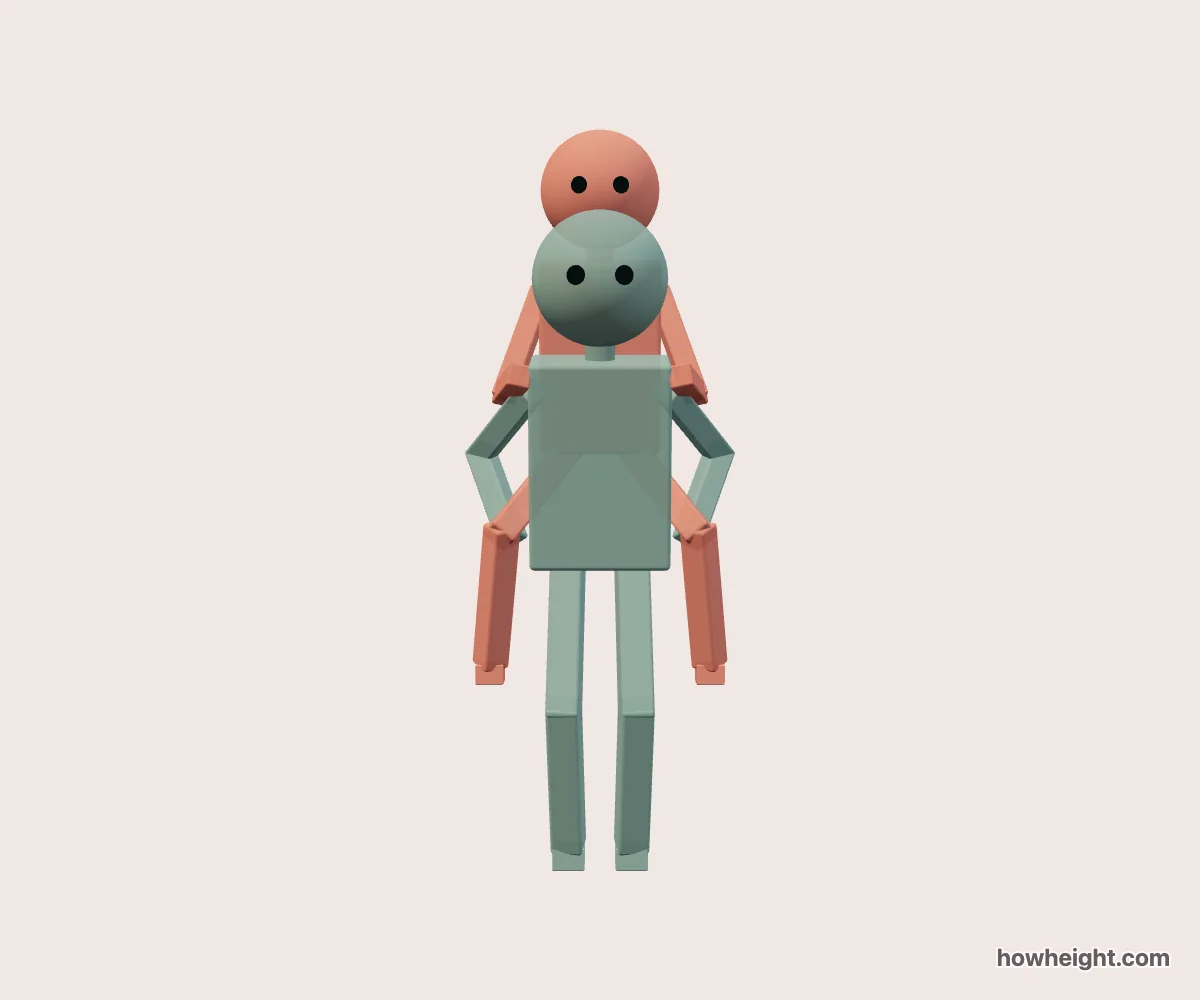
A piggyback pose is built in front-to-back layers
A piggyback places one character on the back of another rather than across the front of the body. In a reference image, the carrier’s torso, the rider’s torso, and the rider’s head form overlapping layers. The hands and legs connect those layers. This simulator lets you choose two heights, assign the carrying role, and inspect the resulting simplified 3D arrangement from more than one angle.
Select Giving a ride to choose the carrier. The other character becomes the rider. Names and colors remain attached to the same characters when you use Swap roles, so you can compare a shorter carrier and a taller carrier without re-entering the pair.
A steady ride and A little peek emphasize different details
A steady ride provides a starting arrangement for inspecting the rider behind the carrier. Look first at the head above or near the carrier’s shoulders, then follow the rider’s body down toward the legs. This wider inspection helps you understand the basic piggyback shape before deciding whether to make the final picture close to the faces.
A little peek changes the pose to bring the rider’s face into a more visible relationship with the carrier. Compare the two presets without changing the names or heights. Notice whether the heads separate more clearly from your selected viewpoint and which shoulder becomes part of the foreground. A different preset can reveal a face, but the effect still depends on the camera angle.
Find the rider’s legs and the carrier’s hands
From the front overview, the carrier can hide much of the rider’s torso. Turn toward the side and identify the boundary between their backs and chests. Then follow the rider’s thighs toward the knees and lower legs. This helps distinguish a rider’s leg from a carrier’s forearm when both appear near the same area of the image.
Trace each visible supporting arm back to the carrier’s shoulder. The overlap around the rider’s legs is important to the meaning of the pose, but it can become visually crowded. Contrasting character colors make it easier to identify ownership while setting up the image. After the arrangement is clear, restore the palette you want for the finished reference and check the same area again.
Compare the rider’s proportions, not just the two standing heights
Try a 180 cm carrier with a 160 cm rider. Locate the two heads, then inspect how far the rider’s legs extend alongside the carrier. The standing height difference is only a starting description: once one character is raised onto the other’s back, the visible head levels are part of the pose rather than a direct standing-height chart.
Keep the carrier at 180 cm and change the rider to 180 cm. Compare the torso overlap and the space occupied by the knees and feet. The scene may reframe as the overall bounds change, so use the relationship between body parts rather than the number of pixels occupied by a character on your screen. Equal standing heights do not put both heads at the same level in a piggyback.
Now use 165 cm for the carrier and 185 cm for the rider, or reverse the roles of an existing pair. Inspect the whole arrangement from the side before choosing a close view.
Pick a view that gives both heads a readable outline
A straight front view can make the rider appear tucked behind the carrier. That may suit the image you have in mind, but it can also hide the second head too completely. Turn the overview gradually and watch when a distinct portion of the rider’s face and neck becomes visible. Compare that view with A little peek rather than assuming a role change is necessary.
The side view explains the front-to-back arrangement, including how the rider sits behind the carrier’s torso. It may be less useful for showing both faces at once. A diagonal view can reveal parts of each, but check the near shoulder and the rider’s knee: either can obscure an important connection.
Block in the two torsos before the supporting limbs
For a piggyback drawing, block the carrier’s torso and the two head positions first. Add the rider’s torso behind, then the bent legs and supporting arms. This order helps prevent the rider from looking like a separate floating figure. A reference that shows the support clearly can be useful even when the final artwork crops around the shoulders and heads.
Check the image boundary around the rider’s feet as well as the highest head. A full pose extends both upward and outward, so it may fit a square canvas differently from a portrait canvas.