
Make a Custom Height Chart Online With Your Own Images
Use the updated HowHeight workspace to build a custom height chart with built-in references, uploaded images, automatic background removal, custom backgrounds, readable labels, and PNG export.
A more flexible way to build a height chart
A height chart is more useful when it can handle real-life subjects, not only two generic people. You might want to compare a person with a pet, a product, a sports object, a tree, a dinosaur, a fictional character, or a prop from a story. You might also already have the exact image you want to use, and a generic silhouette will not quite do the job.
The updated HowHeight workspace keeps the same basic idea as the classic tool: every subject sits on one baseline and uses one shared height scale. The difference is that you now have more control over the board. You can add built-in references, upload your own image, remove the image background, choose a chart background, move objects into better positions, and export the final result as a PNG.
That makes it better for quick people height comparisons, but it also opens the door to character height charts, object size charts, pet size references, furniture planning, product scale mockups, classroom visuals, sports references, and shareable images where the chart needs to be clear without extra explanation.
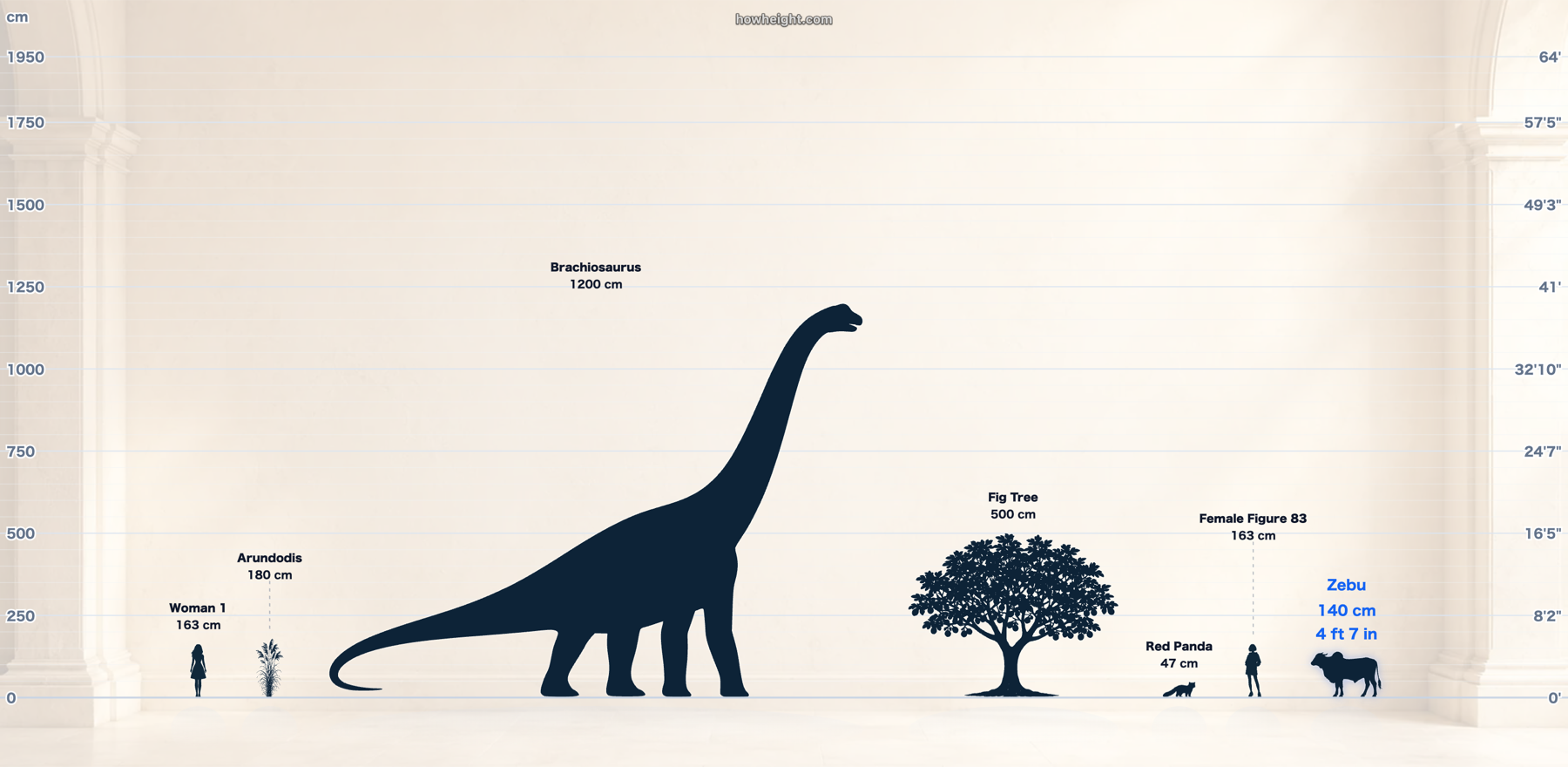
Add people, animals, objects, landmarks, and fictional subjects
The fastest way to begin is still the built-in asset library. Common subjects are grouped into categories, so you can add a person, animal, object, plant, sport item, apparel item, landmark-style reference, or fictional subject without preparing your own image first.
This is helpful for mixed charts. A basketball hoop next to a person, a large tree next to an adult, a dog next to a child, or a doorway next to a character can all sit on the same board. The comparison does not have to stay inside one category just because it started with people.
Quick presets are there when you want a starting point. For a more specific chart, you can load a preset, remove what you do not need, and then add your own subjects one by one.
Upload your own image when the built-in library is not enough
The biggest change is custom image upload. If the subject you need is not in the library, you can upload your own PNG or image file and add it to the chart. This works well for original characters, game characters, pets, products, costumes, vehicles, packaging, furniture, props, drawings, mascots, or any subject where the exact outline matters.
After upload, you can crop around the object and enter its real-world height. The chart then scales the image against the other subjects. For example, if you upload a character and set the height to 180 cm, that character can stand beside a 175 cm adult, a 410 cm hoop structure, or a 500 cm tree on the same scale.
Custom upload is also useful when you are preparing a reference sheet. Artists can test character height relationships, sellers can show product size beside a person, and teams can explain the scale of a physical object without making viewers imagine the number from text alone.
Use automatic background removal for cleaner cutouts
A normal uploaded photo often includes a room, wall, shadow, floor, or messy background. On a height chart, that extra rectangle can distract from the actual comparison. The updated workspace includes automatic background removal, so uploaded subjects can look closer to the built-in cutouts.
The background remover runs in the browser and works best when the subject is clearly separated from the original background. For rougher photos, cropping first usually helps because there is less unrelated image area to process. If the automatic cutout is not right, you can still use the original crop and adjust the chart manually.
For character charts and object size charts, this can make a big difference. The viewer can focus on the height, outline, and baseline instead of the photo background.
Change the background and board style
Not every chart needs the same white board. A plain background is still the clearest choice for measurement, but a soft studio background, gallery wall, botanical background, or warm stone background can make the final image feel more polished when you want to share it.
The background is not only decoration. A clean background separates dark silhouettes from the board, while a subtle grid helps the eye read the height values. If the chart includes many subjects, a calmer background usually works better. If the chart is meant for a poster or social image, a preset background can save a separate editing step.
You can also adjust background opacity. That gives you a way to keep the image visible while making sure labels, height marks, and silhouettes remain readable.
Readable view, fit-all view, focus view, and wide exports
Height comparisons get tricky when the size range is wide. A small object beside a building can almost disappear. If you zoom in on the small object, the taller subject may no longer fit in the visible board. The new view controls are meant to make those tradeoffs easier to handle.
Readable view keeps smaller and medium subjects easier to work with. Fit-all view pulls the chart back so everything can be seen together. Focus view centers attention on one selected subject. These modes are especially useful on mobile, where the board has much less room.
Export behavior is better too. When the board is wider than the current view, you can export the full chart instead of only what is visible on screen. That is useful for multi-subject charts where the objects are intentionally spread out.
Make a character height chart
A character height chart works best when every character is aligned to one baseline and scaled from a real height value. You can use built-in human silhouettes as placeholders, upload character art for a more specific look, remove the background, and then enter each character's height in centimeters or feet and inches.
That helps writers, illustrators, game designers, tabletop creators, comic artists, animation teams, and fans who want a clean comparison image. A 155 cm character, a 180 cm character, and a 320 cm giant can sit on the same board so the size relationship is obvious.
For a cleaner character chart, use images that show the full body from head to foot, crop tightly around each figure, and set the ground line where the character touches the floor. If a character has a hat, horns, hair, wings, or a weapon, decide whether that should count as height before calibrating the image.
Make an object size chart
Object size charts are useful when a number alone does not feel concrete. A 75 cm item, a 120 cm prop, or a 260 cm display piece is easier to understand once it sits beside a person, door, animal, or another familiar reference. In HowHeight, you can mix uploaded objects with built-in references and move them around until the chart reads clearly.
This can help with product listings, room planning, school projects, event props, sports equipment, collectibles, furniture, packaging, and installation planning. A seller can show how tall a display stand is next to a 175 cm adult. A designer can compare a mascot suit with a doorway. A teacher can place a dinosaur, tree, and student on one scale.
When making an object size chart, the most important step is entering the correct real height. If the object is usually measured by width or length instead of height, decide whether the chart should show it standing upright, lying down, or from another angle. A clear label helps avoid confusion.
Use the classic interface when you prefer the older layout
The updated workspace is more flexible, but the classic HowHeight interface is still available. Some users prefer the older layout because it is familiar and direct. The Classic button lets you switch back without opening a separate page.
If you need a fast basic comparison, the classic layout still does the job. If you need custom upload, automatic cutouts, board styling, backgrounds, mobile controls, or full-chart export, the updated workspace gives you more room to work.
Both layouts are built around the same idea: place subjects on one shared scale so height becomes visible. The updated version simply gives you more control over the images, board style, and exported result.
FAQ
Can I make a custom height chart online? Yes. You can use HowHeight to make a custom height chart online with built-in references, uploaded images, custom backgrounds, chart controls, and PNG export.
Can I upload my own image to a height chart? Yes. You can upload your own image, crop it, set the measured height, and place it beside people, animals, objects, plants, landmarks, or other references.
Does the tool remove image backgrounds automatically? Yes. The updated workspace includes automatic background removal for uploaded images. It works best when the subject is clear and the crop is tight.
Can I make a character height chart? Yes. You can make a character height chart with built-in silhouettes or uploaded character art. Enter each character's height, align them to the baseline, and export the chart.
Can I make an object size chart? Yes. You can make object size charts by adding or uploading objects and comparing them with people, animals, doors, sports items, trees, or other familiar references.
Is the classic HowHeight interface still available? Yes. The Classic button lets you switch back to the older interface when you prefer the simpler layout.
Try the visual height comparison tool
Open the board to compare heights in cm or feet plus inches, save a board, or export a clean visual chart.
Open the tool